OFFICIAL MANUAL / GETTING STARTED
Shadowrocket Subscription Import
and First Connection
Start with your existing connection details, then add them, choose a mode, connect, and verify. Get one server working before adjusting rules or automatic connection settings.
Before you begin: Install the app and prepare your connection details. Get Shadowrocket for iPhone / iPad from the App Store; Mac / Windows / Android / Linux versions are free to install from the download page. This tutorial uses the iPhone / iPad interface, and the following steps refer to that interface.
You need your own subscription link or server details, which you can get from your service provider. This site does not provide servers or subscriptions. A one-time app purchase is not a service plan. The iPhone / iPad version costs $2.99 as a one-time App Store purchase; Mac / Windows / Android / Linux versions are free. System requirements are as listed on the App Store page.
The images below are official App Store screenshots, provided to help identify screens and fields. Use your own subscription name, server entries, and available parameters; there is no need to copy the details shown in the images.
Add Server: Add a Server or Import a Subscription
First identify the type of connection details you have. A subscription URL retrieves a group of servers; individual server details require fields specific to their protocol.
Have a subscription link? Use Subscribe
First, check that the link from your service provider is complete. When copying it, keep the path, question mark, and any following parameters. Do not copy a webpage title, explanatory text, or punctuation from a chat message along with it. A subscription URL may contain personal access credentials, so keep it on your own device. When troubleshooting, do not share the full URL in screenshots or support requests.
Open Config in Shadowrocket, find Subscribe, add a subscription, and enter the complete URL. Save it, then update it. When the update is complete, return to Home and check whether the imported servers appear in the SERVER group. A successful import means that selectable entries appear, not merely that a subscription name has been saved. If your service provider gives you a configuration file URL rather than a server subscription, import it using the appropriate configuration option. Do not identify its type based only on the URL suffix.
Updating a subscription retrieves the content currently provided by your service provider; it does not automatically grant new service access. If the first update fails, check whether the current network can reach the URL, then check whether the link has expired or is missing parameters. Repeatedly tapping update will not fix an incorrect URL. Do not try to convert incompatible content by changing its protocol name.
Have details for one server? Use Add Server
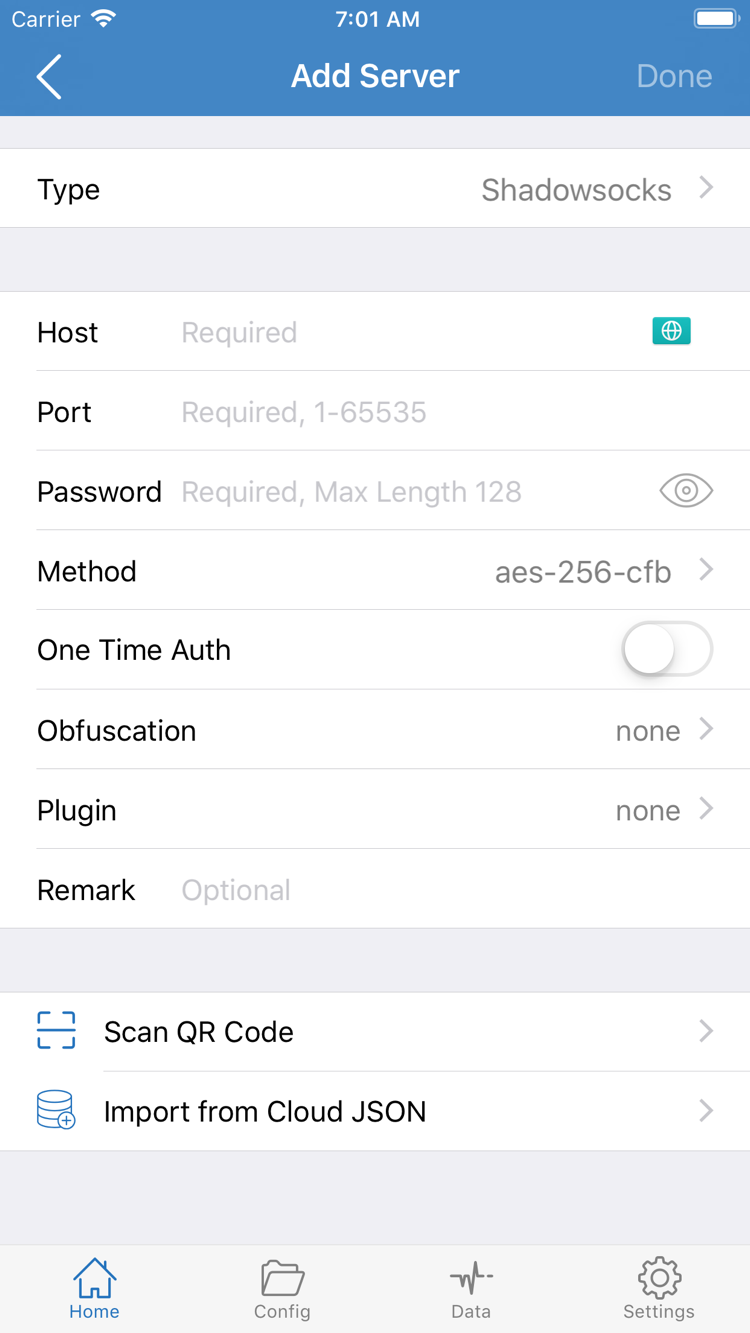
Find Add Server in the SERVER group on Home, or use the add option on the page to open Add Server. Tap Type, choose the protocol that matches your server details, and fill in the required fields. Type determines which parameters are needed. Do not substitute a protocol just because it requires fewer fields than the one specified by your service provider.
The fields in the official screenshot are examples: Host is the server address, Port is the service port, Password is the authentication information, and Method is the corresponding encryption method. Other Types may require additional authentication, transport, or TLS parameters. Check each field against your service provider's details. Do not enter a subscription URL in Host or use a webpage port as the service port. Save or finish using the page controls, then return to Home and confirm that the entry appears.
If your details are provided as a QR code, use Scan QR Code. If they are explicitly provided as cloud JSON, follow the instructions to use Import from Cloud JSON. Importing a QR code does not change its content format; scanning a regular webpage URL does not turn it into a server configuration. Before importing from the clipboard, confirm that you copied the complete connection details rather than introductory text.
At the end of this step, you should see at least one server entry you recognize on Home. There is no need to test many entries or repeatedly import the same details yet; keep one entry for the upcoming mode and connection checks. See Protocol Reference for more about protocol fields, and Glossary for the difference between subscriptions and configuration files.
Global Routing: Choose a Routing Mode
A server entry tells you where a connection can go; Global Routing determines how requests are handled. Check these separately.
Return to Home and tap Global Routing to see the current selection. For your first use, note the current selection before changing it to suit your configuration. The three modes are Config, Proxy, and Direct. They are not speed settings and do not indicate server quality.
Config: Route traffic according to the active rules
With Config selected, requests are handled according to the active configuration file. Rules can route different destinations to PROXY, DIRECT, or REJECT; the behavior depends on the file contents. Selecting Config does not mean that every request uses a server. If a destination matches DIRECT, it still connects directly.
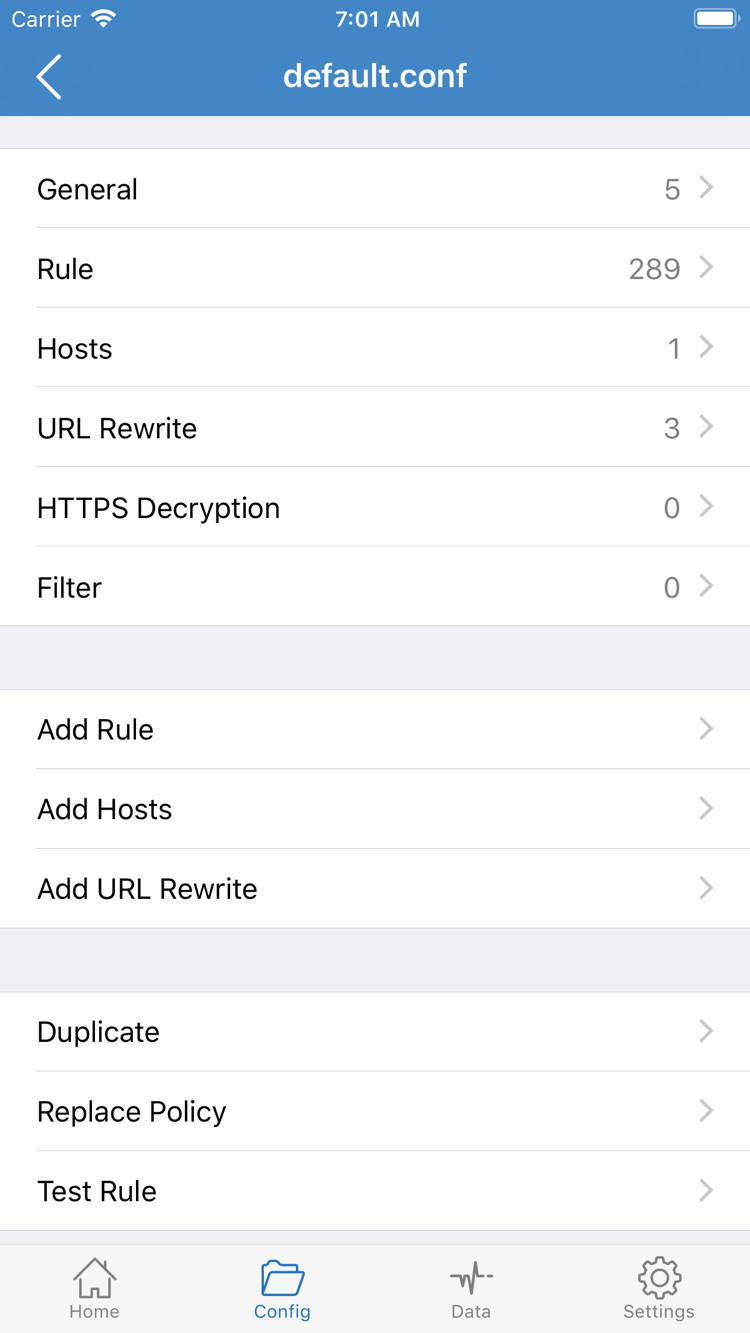
Open Config and confirm that the configuration file you need is selected. The editor has sections such as General, Rule, Hosts, URL Rewrite, and HTTPS Decryption. Review specific rules in Rule, and use Add Rule to add one. Importing a server and enabling a rules file are separate steps: seeing a server entry on Home does not mean a rules file has been enabled. You do not need to change all these sections when getting started; begin with a configuration whose source and purpose you have confirmed.
Proxy: Temporarily check the selected server
Proxy is useful for temporarily reducing variables introduced by routing rules during troubleshooting, so you can check whether the selected server can handle a request. It is not a permanent recommendation and does not guarantee that all system traffic will use the same route. Before testing, confirm that the intended entry is selected on Home. When testing is complete, switch back to Config if you need rule-based routing, then check the results again.
Direct: Connect directly to the destination
Direct does not use the selected proxy server as the outbound path for regular requests. It is useful for comparing results with proxy access. If the connection switch is on but a destination still shows your local network's exit, first check whether Direct is selected or whether the destination matched DIRECT under Config, rather than immediately assuming that the server details are wrong.
For this initial setup, choose the mode that matches your goal; there is no need to add complex rules yet. After making a selection, return to Home and note the value shown on the Global Routing row. Check it against your choice during the next connection step. If you are unsure about rule order or the purpose of FINAL, read the Rule Keyword Reference first. Avoid making multiple rule changes without saving the original file.
Home: Turn On the Connection
Select a server first, then turn on the switch at the top. The first connection requires system authorization for a VPN configuration.
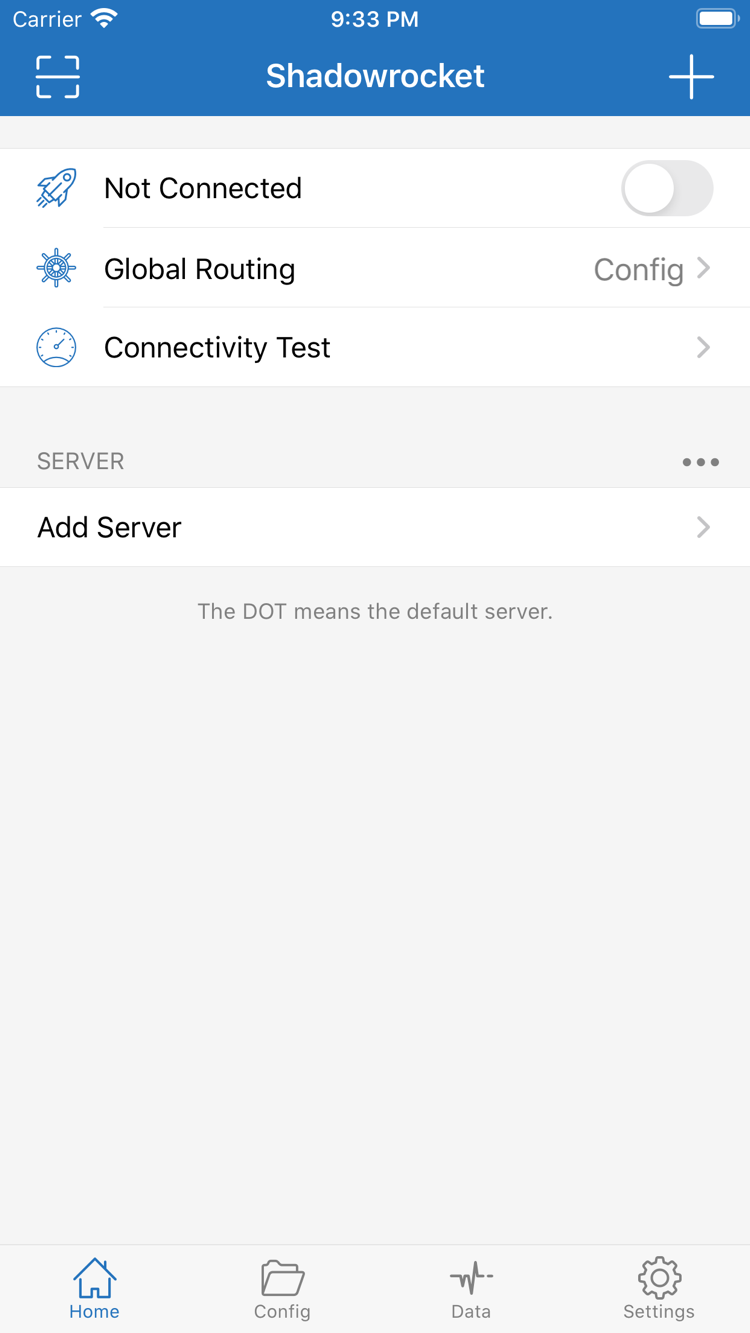
In the SERVER group on Home, select the server you want to use and check its name and selection indicator. A subscription may contain several entries with similar names. Selecting a group heading does not necessarily select an individual server. If the list is empty, complete the import in Step 1 first; repeatedly toggling the switch at the top is not a substitute for adding connection details.
After confirming that Global Routing shows the expected mode, turn on the switch next to Not Connected at the top of Home. The first time, the system asks whether to allow adding a VPN configuration. Confirm that Shadowrocket initiated the request, then allow it and complete password or biometric verification as prompted. This authorization sets up the connection configuration on the device. It is not subscription authentication and does not fill in missing server parameters.
After following the system prompts, return to Home and wait for the connection status to change. Check whether the switch stays on. If it does not connect immediately after authorization, try turning it on once more after confirming that the configuration was added. If device management policies prevent adding a VPN configuration, or the system does not allow it, resolve the device permission issue first; changing the server password will not fix it.
While connecting, avoid enabling other features that take control of the system network connection, as another connection may override the status. For your first verification, leave On Demand disabled so the connection is controlled by the manual switch. This makes it easier to tell which action established the connection. To stop, turn off the switch on Home and confirm that the status returns to disconnected.
A change in the status at the top only indicates that the connection configuration is running. It does not prove that remote server authentication succeeded or that every rule behaves as expected. Keep the current server and Global Routing selection unchanged, then check actual requests in the next step. This makes it possible to reproduce any issue with the same settings instead of guessing between several variables.
Connectivity Test: Verify Actual Requests
Verify test results, an active connection, and expected access separately. Do not use one status to judge the entire connection path.
Check the server first, then check access
Run Connectivity Test on Home and see whether the selected server returns a test result. You can check the test method in Test Method under Settings. The result reflects connectivity using that specific method; it does not guarantee access to all websites or apps or sustained speed. No response from a particular test does not, by itself, prove that all service requests are unable to connect.
Keep the connection on, switch to a browser, and visit a page you normally use that should be accessible on your current network. Make a new page request rather than checking content that was already open. Browser caches or existing app connections may make two results look the same. If needed, reopen the page and check whether it loads completely.
Check the corresponding connection in Data
Return to Data in Shadowrocket and find the connection created by your visit. Check its destination, matched policy, and outbound details. If you are using Config, judge it by the rule that actually matched the destination. If it matched DIRECT, you should not expect it to show the selected proxy server. If the record does not match your expectations, first check the active configuration file, then see whether an earlier rule matched.
If you use an exit address as an additional check, first confirm which policy handled that lookup request. Under rule-based routing, different destinations may take different paths; do not generalize the exit shown for one page to all requests. Normal connection verification for an HTTPS page does not require HTTPS Decryption or installing an additional certificate.
When verification is complete, note the server, Global Routing mode, and configuration file that worked. If you temporarily switched to Proxy, restore Config if that is what you need for everyday use, then make another request and check it. This setup is complete only if the result is correct after restoring your settings. You can use the same steps to check again after changing networks or updating a subscription.
Completion criteria: A selectable server appears on Home, the connection switch stays on, the intended page is accessible, and the policy for its corresponding request in Data matches the current Global Routing mode and configuration rules. A test result is only one part of verification; it does not replace checking actual access.
Settings: Troubleshoot by Step
Start with the earliest failed step and change one variable at a time. Keep the original configuration; do not refill server details, switch modes, and change DNS all at once.
No server entry after import? Check the returned content
If the subscription name is saved but SERVER is still empty, check whether the update actually completed and whether your service provider returned subscription content the client can recognize. An expired URL, missing parameters, an account status change, or a login webpage in place of the expected content can all cause import to fail. Confirm the link is valid with your service provider, then update it again. Do not adjust Global Routing before a server entry appears.
Switch will not stay on? Check authorization and parameters
If the switch immediately turns off, first confirm that system authorization to add the VPN configuration is complete. Then check the selected server's Type, Host, Port, and authentication details. For servers requiring TLS or a specific transport, check the corresponding fields too; checking only the password is not enough. If you just changed the server entry, stop the connection, turn it on again, and see whether the same issue can be reproduced.
Test returns a result, but the page will not load? Check rules and DNS separately
Compare Config and Proxy using the same destination. If only Config has an issue, check the active configuration file, rule order, and policy target first. If both modes have an issue, check whether the server and destination are reachable. If the problem is a domain name resolution failure while other connections still work, review the DNS settings in the configuration. Do not replace all DNS parameters because one domain fails to load.
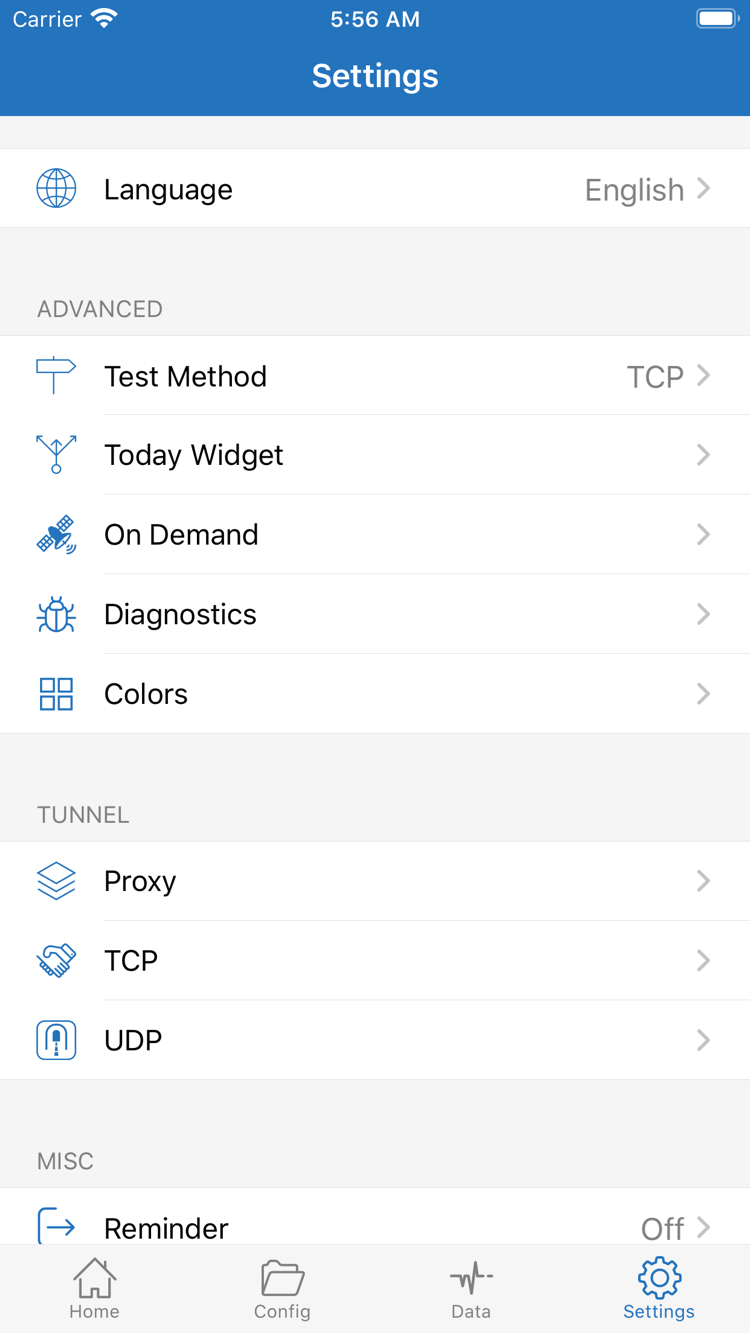
In Settings, review Test Method and Diagnostics. Test Method helps explain how Connectivity Test works; Diagnostics can help gather clues about the problem. When recording an issue, include the error type and the step where it occurred. Before sharing, hide credentials in subscription URLs, server authentication fields, and other personal information. For differences between protocol fields, see Protocol Reference. Common import and setup issues are covered in Frequently Asked Questions.
Connection restarts automatically or keeps changing? Check On Demand
If the connection turns on again after you switch it off manually, or behaves unexpectedly when you change networks, review On Demand under Settings. On-demand connection affects when a connection is triggered and is best configured after manual connection has been verified. For troubleshooting, disable the relevant automatic triggers first, confirm that manual connection is stable, then restore them one at a time. This helps distinguish automatic reconnection from a faulty switch.
Settings also includes items such as Proxy, TCP, and UDP. These are not a checklist of settings that must all be changed before your first connection. Adjust them only when you have identified the layer where the error occurs and have a relevant explanation to follow. Keeping a configuration that has worked makes problems easier to locate than enabling every setting at once. After making a change, return to Home, reconnect, and repeat Step 4. Do not stop at confirming that a setting was saved.