Official Shadowrocket app icon

Official website · Official manual

Shadowrocket
Guide and Downloads for All Platforms

Cross-platform rule-based proxy client for subscription management and rule routing; iPhone / iPad: $2.99 one-time on the App Store; Mac, Windows, Android and Linux: free.

Current version v2.2.92 · iPhone / iPad: $2.99 one-time; Mac, Windows, Android and Linux: free

First-time setup: subscription import and connection steps →

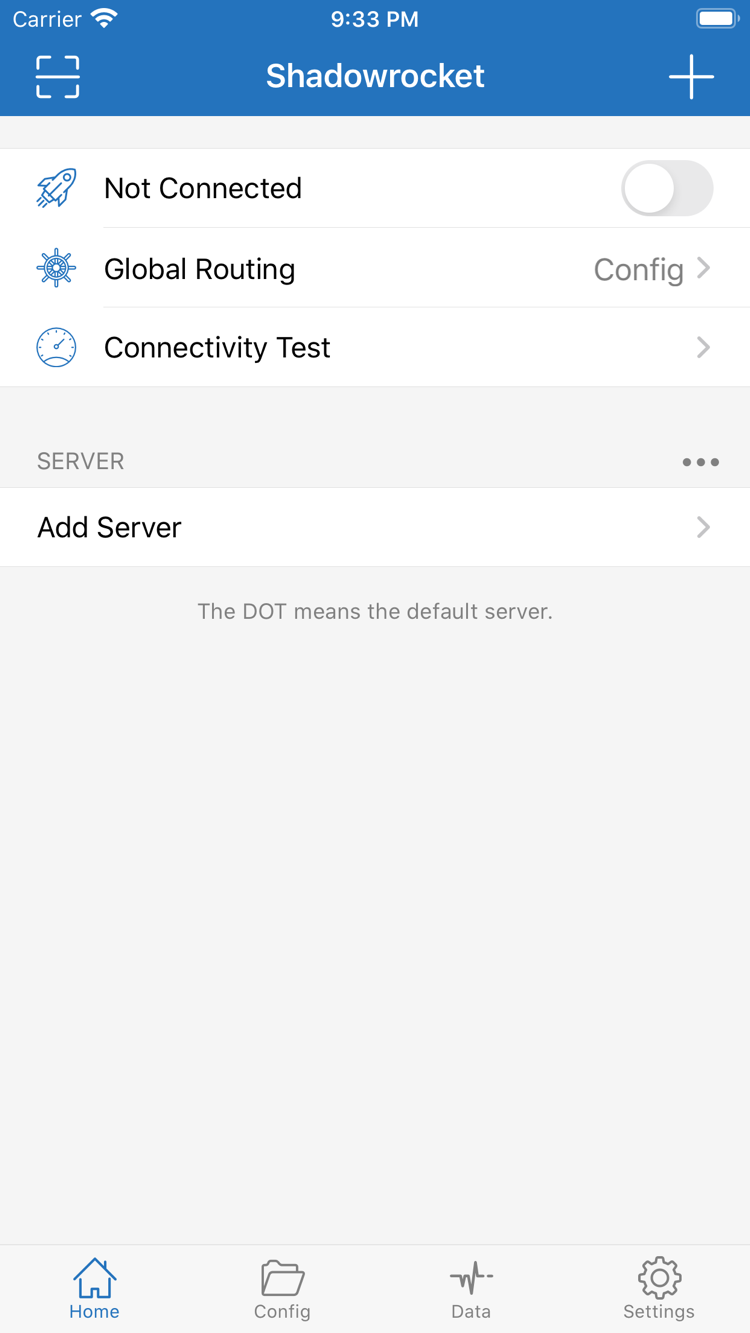
Shadowrocket home screen on iPhone
iPhone home screen
2 ways to get it · App Store purchase / free downloads from this site RULE · Matched in order CONFIG · Servers and rules managed separately

GET SHADOWROCKET

Find download options by device

Identify your device and processor first, then read the relevant download and first-launch instructions. iPhone / iPad: $2.99 one-time on the App Store; Mac, Windows, Android and Linux: free, with installers available from this site at /dl/shadowrocket/.

iPhone / iPad

App Store $2.99 one-time · Other platforms free

For everyday connections, subscription management and rule configuration. Before purchasing, check the developer, icon and app ID; iPhone and iPad can share the same purchase record. Refer to the App Store product page for system requirements. App availability in the store depends on the account's store region.

App Store and purchase details →

Mac

Free · Apple Silicon / Intel

Check the chip or processor in About This Mac, then choose the matching installer. Do not infer it from the computer's appearance or purchase year. If a developer verification prompt appears on first launch, confirm the installer came from this site, then follow the “Privacy & Security” steps on the download page.

Mac versions for both processor types →

Windows

Free · 64-bit

Get the Windows installer from the download page, then import your existing server details. If SmartScreen blocks it, confirm the installer came from this site, select “More info” in the prompt, then check for the “Run anyway” option. Follow your administrator's requirements on organization-managed computers.

Windows download instructions →

Android

Free · arm64

Get the Android installer from this site's download page. If the system asks for installation permission, enable “Allow from this source” only for the browser or file manager in use, then turn it off when finished if desired. When establishing a connection for the first time, review the system VPN connection authorization prompt before confirming.

Android downloads and permissions →

Linux

Free · deb / rpm / AppImage

Choose deb or rpm according to your distribution's package manager, or use AppImage. AppImage requires execute permission before first launch; the download page includes the relevant command and instructions. If you encounter a dependency prompt, record the full error first rather than repeatedly changing subscriptions to troubleshoot an installation issue.

Linux package options →

View all platforms →

RULE / CONNECTION / CONFIG

Rule routing and connection settings

Server details determine where to connect, the protocol determines how the connection is established, and rules determine which policy applies to each request. Understand these three layers before changing settings so you can identify what a troubleshooting step affects.

Rule order · Conceptual example

DOMAIN-SUFFIX,example.com,PROXY
GEOIP,CN,DIRECT
FINAL,PROXY
DIRECTPROXYREJECT

RULE

Check rules in order

Manage configuration files in Config and select Config in Global Routing to process requests according to the active configuration. Rules are checked from top to bottom, and the matching policy is applied, so specific domains usually go before broader rules, with FINAL at the end to handle remaining requests. DIRECT connects to the destination directly, PROXY uses a proxy policy, and REJECT denies matching requests. This example illustrates syntax only; do not use it as a replacement for a complete configuration. After making changes, revisit the destination and check which rule actually matched.

Learn about rule order and FINAL →

System connection conditions · Overview

On Demand

SettingsWi-FiCellular

ON DEMAND

Connect when conditions are met

On Demand lets the system attempt a connection when specified conditions are met; it does not select rules or fix an unavailable server. First connect manually from Home and verify that it works, then check the On Demand conditions in Settings. On-demand connection and automatic reconnection are different: the former describes what triggers a connection, while the latter concerns what happens after an existing connection is interrupted. If the connection starts again after you turn off the main switch, check these settings first instead of immediately deleting the configuration. After switching networks, verify both the connection status and the behavior of your requests.

Learn what On Demand controls →

Existing details · Import options

Subscribe

Add ServerScan QR Code

SUBSCRIBE

Distinguish subscriptions from individual servers

Get subscription links from your service provider. Before importing, identify whether the item is a subscription URL, a single-server share link or a configuration file URL; do not treat them as interchangeable just because they look similar. Add an existing subscription through the relevant Subscribe entry. Add a single server manually with Add Server or import it using Scan QR Code. Updating a subscription fetches the list published by your provider; it does not update the client. If an import fails, check the link, access permissions and network response before deciding whether to import again. Avoid deleting existing settings in the process.

Learn about four import options →

Configuration sections · Text reference

[General]
[Rule]
[Host]
[URL Rewrite]

CONFIG

Check configuration, statistics and sync separately

Config manages settings such as routing rules and DNS. Selecting a server does not mean the intended configuration file is selected. Keep a copy of the original file before editing, confirm the active item after changes, then test with a small number of requests. Data provides traffic statistics that can help show whether a connection is transferring data, but the counters alone cannot confirm that a destination service is working. For iCloud sync, check the account and sync permissions first, then confirm the data arrived on the other device. Synced configuration does not replace service-provider authorization or mean a connection will continue across devices.

Learn about .conf file sections →

PROTOCOL

Protocol types and diagnostic tools

ShadowsocksVMessVLESSTrojanHysteria2WireGuard

The protocol must match the details provided by the server; a newer-sounding name is not necessarily a better fit for your network. Match Host, Port, encryption, TLS and transport parameters individually. Select HTTP or SOCKS5 according to the service type. Do not interchange fields from different protocols just because their names look similar.

Before connecting, use Connectivity Test to check the server response. After connecting, use Diagnostics alongside actual access results to locate issues. A single test reports only a specific probe result at that moment; it does not replace a full service check. If a domain fails but its IP address is reachable, check DNS and the relevant rules as well.

Read the protocol reference →

GLOBAL ROUTING

Three modes, three purposes

Config mode: everyday rule-based routing.

Config uses rules in the currently active configuration to determine request policies. To send some requests directly and others through a proxy, select the configuration file first, then check rule order and the final fallback. Importing a server without checking the configuration does not confirm that routing behaves as expected. For verification, choose a destination that clearly matches a specific rule and observe the actual policy. If the result is unexpected, confirm the active file and matched rule before changing its contents; do not change several global settings at once.

IDENTITY / PURCHASE / SERVICE

Verify the app and purchase options

Shadowrocket Help Center is the official Shadowrocket website and manual. Getting the app, restoring a purchase and importing service details are separate steps. Check each in order to distinguish store, client and service issues.

Official Shadowrocket icon for app verification

Check the icon, developer and app ID

Developer: Shadow Launch Technology Limited
App ID: 932747118

On the App Store product page for iPhone / iPad, first confirm the app is named Shadowrocket. Compare its icon with the official icon shown on this site, then check the developer name and app ID on the product page. Similar names or icons in search results are no substitute for these three checks. For computer and Android versions, use this site's download page. Installers are under /dl/shadowrocket/; do not mistake a similarly named file in search results for an installer published here.

App verification steps →

Store availability and account region

Shadowrocket is not listed on the mainland China App Store. If you cannot find it, first check the store associated with your Apple ID rather than repeatedly changing the device language. Device location, system display language and account store region are separate settings; app availability is primarily determined by the current store.

Check the account under “Media & Purchases” in account settings, then review “Country/Region.” Before changing regions, read the system guidance about balances, subscriptions and payment methods, and follow the official settings flow. Refer to the App Store product page for system requirements and check it on the device you plan to use before purchasing.

Learn about store regions and search results →

One-time purchase and restoring on a new device

On the US App Store, Shadowrocket costs $2.99 as a one-time purchase for iPhone / iPad; payment is charged in the local currency shown by your store. Mac, Windows, Android and Linux versions are free. iPhone and iPad can share purchase records under the same account. When changing devices or reinstalling, first confirm that “Media & Purchases” is signed in with the account used for the original purchase.

Find the app in purchased items and download it again. Do not confuse the device's signed-in account with the purchasing account. To get the computer or Android client again, return to this site's download page and select your platform. Client updates and subscription updates are separate; updating a subscription does not update the app itself.

Restore a previous purchase →

Frequently asked questions

I imported a subscription. Why can't I connect?

A successful import only means the client read the server list. You still need to select an available server, check Global Routing, turn on the connection switch and complete system authorization. Record the error, then check the network, server parameters, DNS and rules in that order. Avoid changing several things at once. Follow the steps in Quick Start to review the setup.

Can I use Shadowrocket on computers and Android?

Yes. iPhone / iPad: $2.99 one-time on the App Store; Mac, Windows, Android and Linux: free. Mac has separate Apple Silicon and Intel installers, and other platforms also require the matching system format. Find download options and installation permission instructions on the all-platform download page.

Rules have no effect after I edit them. What should I check first?

First confirm Global Routing is set to Config. Then check whether the configuration you edited is active and whether a rule above it already matched the destination. Existing connections may keep using their previous route, so start a new request to verify. See the glossary for rule keywords and policies, or the FAQ for more troubleshooting topics.

MANUAL NOTES

Configuration guides and usage notes

Read the relevant guide for your issue: identify the entry point and fields first, then understand how the rules take effect. Examples explain structure; use your existing service details and active configuration for actual parameters.

View all articles →

Download Shadowrocket for all platforms